st.sidebar in Streamlit
The sidebar is a container in Streamlit that allows us to place widgets (like sliders, text inputs, checkboxes, etc.) on the left side of the app.
It helps in:
- Organizing your layout neatly
- Keeping the main content area clean
- Providing user controls or filters in one place
Syntax
st.sidebar.widget_name(arguments)
👉 It works exactly like the normal st.widget_name() functions, but places the widget inside the sidebar.
Common Widgets Used in Sidebar
- st.sidebar.title() → Adds a sidebar title
- st.sidebar.header() → Adds a sidebar header
- st.sidebar.text_input() → Input box for text
- st.sidebar.slider() → Slider to select a numeric value
- st.sidebar.selectbox() → Dropdown menu
- st.sidebar.checkbox() → Checkbox option
- st.sidebar.radio() → Radio buttons
- st.sidebar.button() → Button for actions
Example: Simple sidebar widgets.
Python
# Importing the Streamlit library
import streamlit as st

# Sidebar title
st.sidebar.title("Sidebar Controls")

# Sidebar input widgets
name = st.sidebar.text_input("Enter your name")
age = st.sidebar.slider("Select your age", 10, 60, 25)

# Sidebar selectbox
gender = st.sidebar.selectbox("Select Gender", ["Male", "Female", "Other"])

# Display results in main area
st.write("### 👋 Hello,", name)
st.write("**Your Age:**", age)
st.write("**Gender:**", gender)
The output of the above code is shown below:
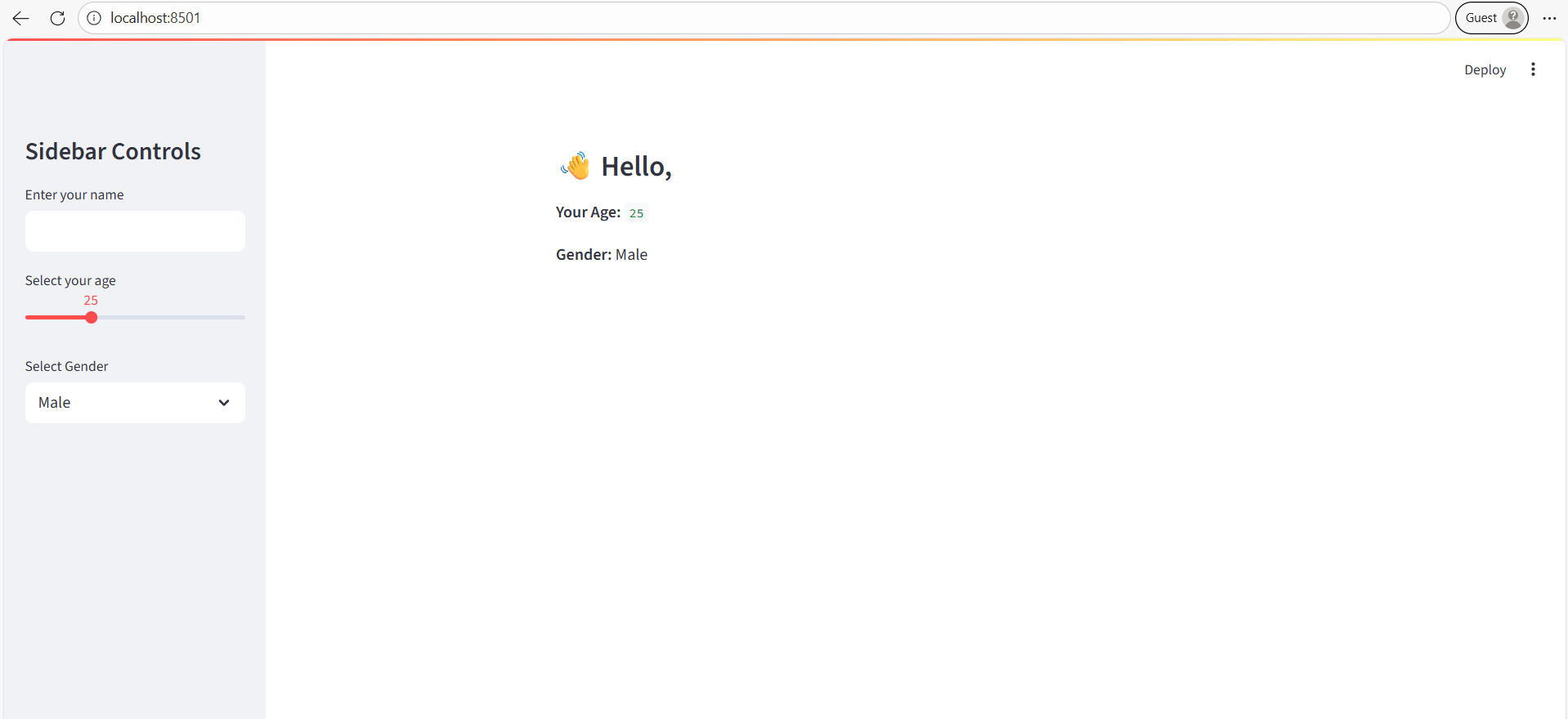
Explanation:
- All input elements are placed in the sidebar.
- Output is shown in the main content area.
Example: Sidebar for Filtering Data
Python
# Importing the Streamlit library
import streamlit as st
import pandas as pd

# Sample dataset
data = {
    "Store": ["A", "B", "C", "D"],
    "Sales": [200, 150, 300, 250],
    "Region": ["East", "West", "East", "North"]
}
df = pd.DataFrame(data)

# Sidebar filter
region = st.sidebar.selectbox("Select Region", df["Region"].unique())

# Filter data
filtered_df = df[df["Region"] == region]

# Display
st.write(f"### Stores in {region} Region")
st.dataframe(filtered_df)
Explanation:
- Sidebar acts as a control panel for filtering data.
- Main screen displays filtered results.
When to use st.sidebar
- Have filters or user inputs that control main content
- Want a clean main area for displaying results, charts, or outputs
- Need to provide navigation or settings
Tip: Using Sidebar Context Manager
We can also create custom sidebar sections using a cleaner syntax.
Python
with st.sidebar:
    st.header("Settings")
    theme = st.radio("Select theme:", ["Light", "Dark"])
st.write("You selected:", theme) - This syntax is cleaner and recommended for larger apps.
- Useful when grouping multiple sidebar controls together.